
In this article, we’ll show you how to link your accounts and take advantage of the various facets of this new integration.
Get Started on the One-Key App on Your Desktop Browser
- Log in to the One-Key app on your computer.
- Click on your avatar photo at the top right of your screen, beside the Milwaukee® logo.
- Select “My profile.”
Link One-Key and Autodesk Accounts
- Once in your profile, scroll to the bottom of the page. Next to “Link Accounts,” you’ll see a “Connect to Autodesk Forma” button. Push this button.
- You will be redirected to a Autodesk authorization window. Select “Allow” to link your accounts.
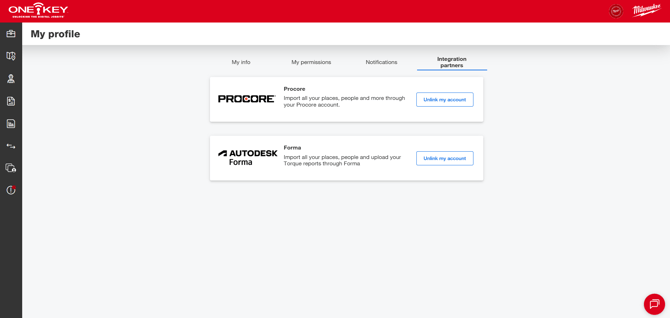
- You’ll then be redirected back to One-Key where a success banner will display.
Select Existing Places/Projects You’d Like to Import from Autodesk Forma
Now that you've linked your Autodesk Forma account with your One-Key account, you'll want to import the existing projects in your Forma account to One-Key to ensure that your One-Key "places" are up to date.
- To import projects from Forma into One-Key, navigate to “Places.”
- Here, you’ll find an “Import from Forma” button in the center “Add Project/Job” field.
- After clicking this button, a popup will appear on your screen with any projects that are currently in your Forma account. Select as many projects as you’d like to import.
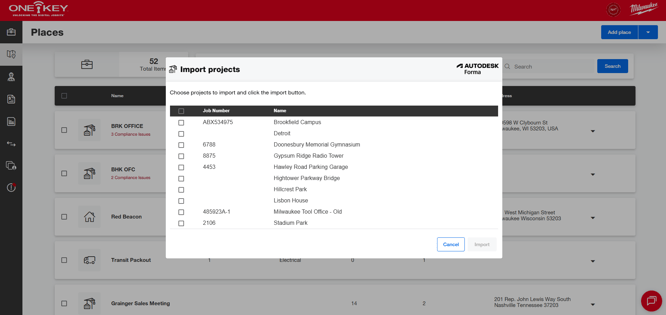
- A success banner will flash across your screen indicating a successful import.
Make sure to keep the lines of communication open with your team. If additional projects are added to Forma, you’ll want to come back here and import them to One-Key to make sure your projects stay up to date and accurate.
Select Existing People You’d Like to Import from Autodesk Forma
You'll also want to import your BIM 360 contacts into One-Key to ensure everyone’s contact info is accessible and up to date.
- Navigate to “People.”
- An “Import from Forma” button will be at the top righthand corner of your screen. Push this button.
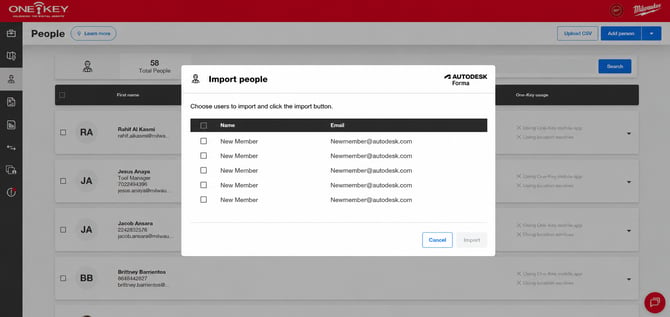
- An import popup will appear on your screen. Pick all the contacts you’d like to import to One- Key from BIM 360.
- A success banner will flash across your screen indicating a successful import.
Send Torque Reports to Forma Data Management: Verify Installations Are Performed to Spec
The new torque reporting of the state-of-the-art Milwaukee digital torque wrench lets you record your performed events and provide verification to anyone that fasteners were properly installed. You generate customizable reports and send them directly to Forma to increase transparency.
- Navigate to the “Reports” dropdown along the left-hand side of your screen, then select “Torque wrench.”
- If you haven’t already, select the torque wrench you want to generate a report for, format your report, then click “Select download options.”
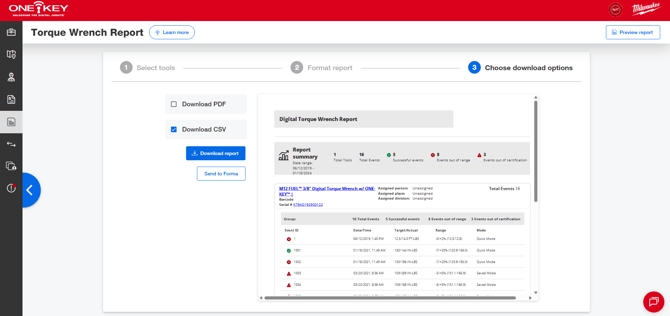
- Under “Download,” there is an option to “Send to Forma.” Select this button.
- A popup will appear, populating your screen with all your recent torque reports. Select a project and folder whose torque report(s) you’d like to send to Form Data Management and select “Upload.”
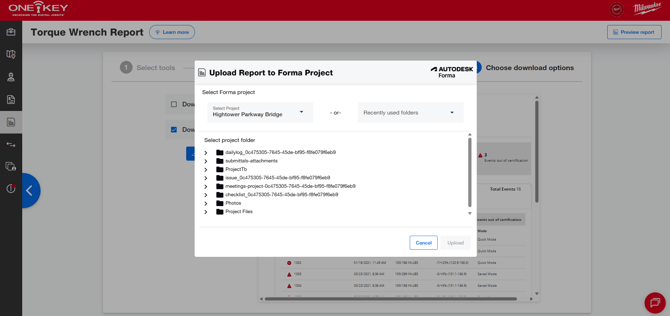
- A success banner will flash across your screen indicating a successful export/data sync.
Milwaukee One-Key integrates with Autodesk Forma, helping you connect the dots between the day- to-day construction work on the jobsite and the important planning and strategy taking place in the back office.